

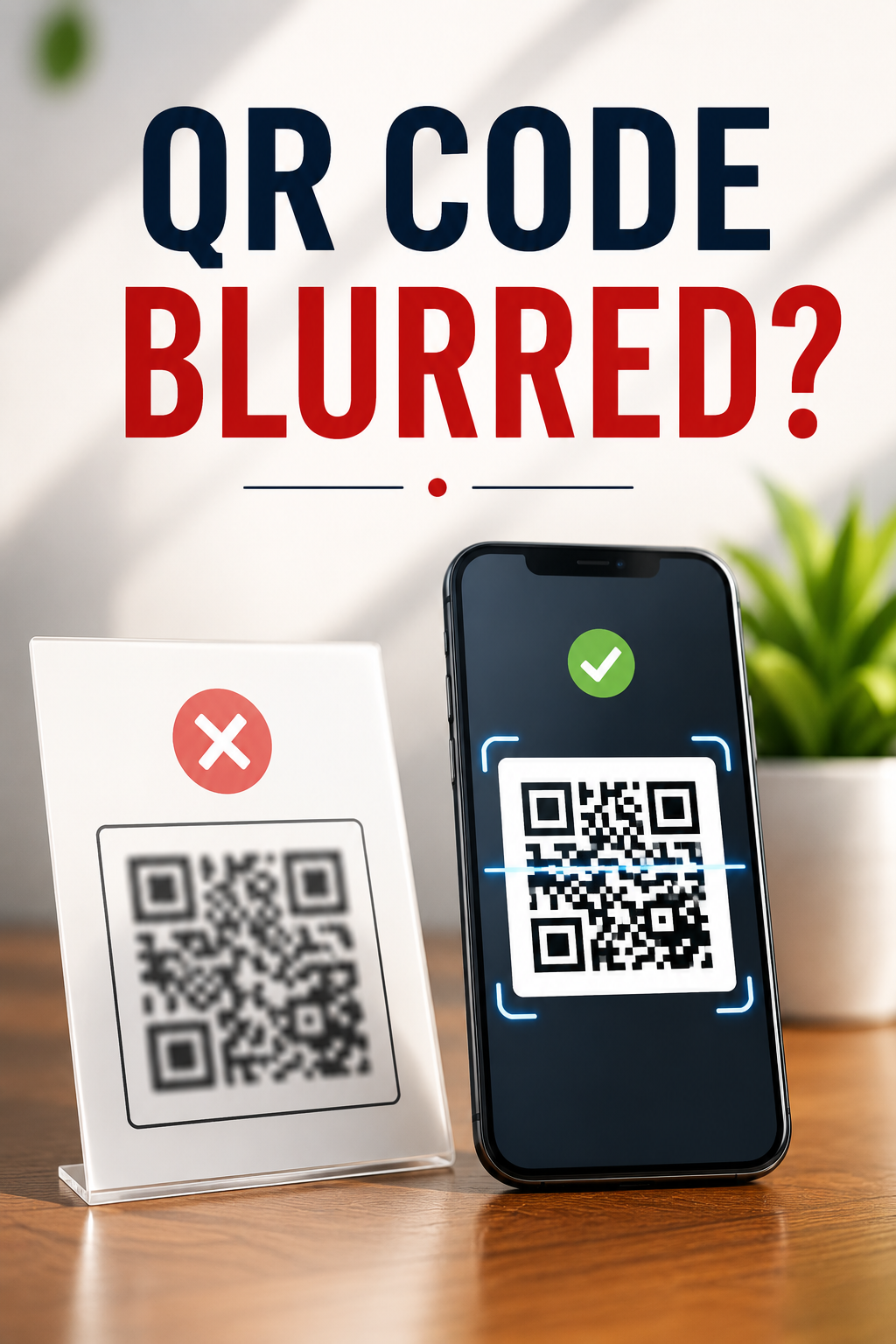

QR Code Blurred? Causes, Fixes and Solutions
A blurred QR code usually comes down to one of five things: a low resolution download, a stretched or resized image, heavy compression from a messaging app or social platform, a poor print job, or a phone camera that cannot focus properly. Once you know which of these is causing the problem, fixing it takes minutes, not hours.
QR codes only work because a scanner can clearly see the pattern of black and white squares that make up the code. Any loss of sharpness, even a small one, can break that pattern enough that a phone camera gives up. This matters more than most people realize. A blurry code on a menu, a poster, a business card, or a product label is not a small design flaw. It is a dead end for the customer who was ready to take action right then.
This guide walks through every common cause of a blurry QR code, how to fix each one, how to generate and export a new code correctly, and how to test it so it never happens again.
What a Blurred QR Code Actually Means
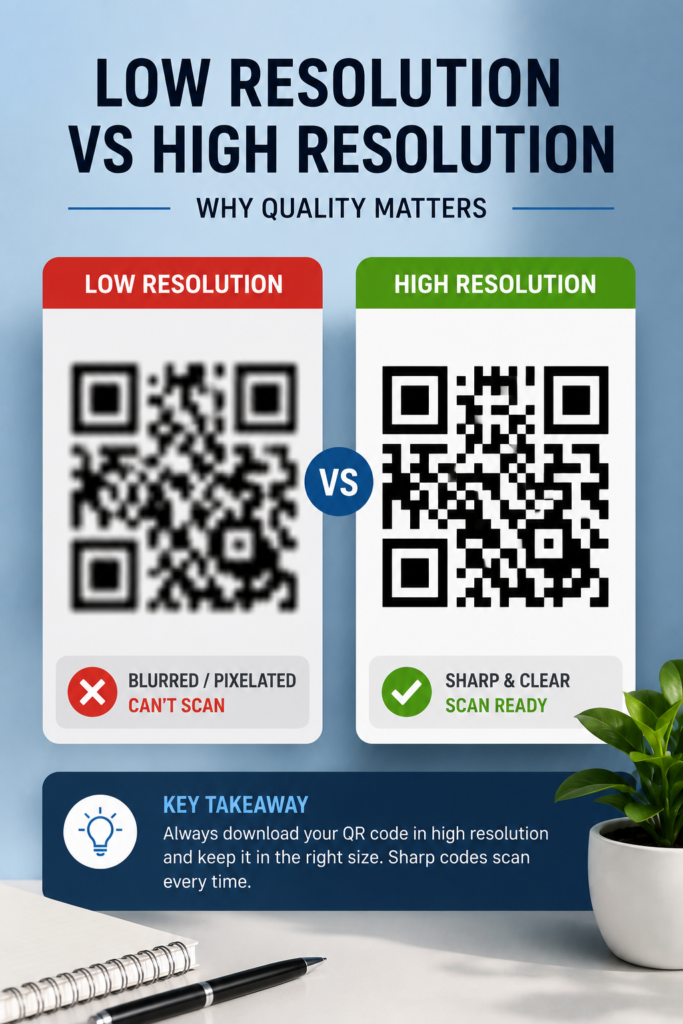
A QR code is made of small square modules arranged in a grid, along with three larger squares in the corners called finder patterns. The scanner uses those patterns to locate the code and read the grid behind it, a structure explained in more detail on the QR code overview page on Wikipedia. When an image loses sharpness, the edges of those squares blend into each other, and the scanner can no longer tell where one module ends and the next begins.
This is different from a code that is simply damaged or covered. A blurred code is still complete. The data is all there. It is the image quality that has failed, not the code itself. That distinction matters because it tells you the fix is almost always about the file, the print, or the camera, not about redesigning the code from scratch.
Why Your QR Code Is Blurred
There are two broad categories to think about: problems with the image file itself, and problems with the environment or device used to scan it. Most people assume it is one or the other, but in practice both can be happening at once.
The File Was Downloaded at Low Resolution
Many QR code generators offer a quick preview download that is fine for viewing on screen but far too small for printing or for use in a presentation. When that small file gets placed into a flyer, a slide, or a product label and displayed larger than its original size, the software has to guess at the missing pixels. That guessing is what produces the blur.
The Image Was Stretched or Resized Incorrectly
Dragging the corner of an image in a design tool without locking its proportions distorts the square modules inside the code. Even a small stretch in one direction can be enough to confuse a scanner, because QR codes depend on those modules staying perfectly square. Adobe’s own guidance on image size and resolution covers why enlarging a raster image beyond its native resolution always costs sharpness, which applies just as much to a QR code as it does to a photo.
Compression From Messaging Apps and Social Platforms
WhatsApp, Instagram, Facebook, and most email clients automatically compress images to save bandwidth. This is usually invisible for a normal photo, but a QR code has fine detail that compression tends to smear. If you have ever sent a QR code through a chat app and had someone say it will not scan, this is almost always why.
Printing Problems
Low print resolution, worn ink cartridges, cheap paper, or a printer that is simply due for maintenance can all soften the sharp edges a QR code needs. This is one of the most common causes on physical materials like menus, posters, and packaging.
Camera Focus and Lighting Issues
Sometimes the code itself is perfectly sharp and the phone is the problem. Poor lighting, a dirty lens, holding the phone too close, or scanning in low light can all prevent a camera from focusing correctly on the pattern.
Screen Glare on Digital Codes
If someone is scanning a QR code shown on another screen, such as a laptop or a digital menu board, glare and low brightness can make the code hard to read even though the file itself is fine.
How to Fix a Blurred QR Code Step by Step
Step 1: Rule Out the Camera First
Before touching the QR code file, check whether the problem is actually the phone. Clean the camera lens, move to better lighting, and hold the phone about four to six inches from the code, giving the camera a second to focus. Apple explains the standard scanning process for iPhone cameras in its official support guide, and Google covers the same distance and focus guidance for Android devices in its account help documentation. If a code scans fine on one phone but not another, the camera was the issue, not the code. On phones where the default camera struggles, Google Lens often succeeds because it uses a separate image recognition pipeline built specifically for pattern detection.
Step 2: Check the Source File
Open the original QR code file and zoom in. If the edges look soft or pixelated even before resizing, the file itself was exported at too low a resolution. This is common when someone right clicks and saves a preview image from a website instead of downloading the full quality version from the generator.
Step 3: Regenerate the Code Instead of Editing the Old One
Trying to sharpen a blurry QR code in a photo editor rarely works, because sharpening tools cannot recreate detail that was never captured. The reliable fix is to go back to the original QR code generator and export a fresh file at the size and format you actually need. Since a QR code is just a mathematical pattern based on the underlying data, regenerating it costs nothing and guarantees a clean result.
Step 4: Export in the Right Format
PNG works well for websites and screens. SVG is a vector format, which means it can be scaled to any size, from a business card to a billboard, without ever becoming blurry, and it is the safest choice when you are not sure how large the final code will be. PDF is the best option for anything going to a professional printer, since it preserves quality across different print systems. Design tools such as Adobe Illustrator handle all three formats well and make it easy to lock the aspect ratio during editing.
Step 5: Keep the Quiet Zone Intact
Every QR code needs a blank margin around all four sides, known as the quiet zone. This margin helps the scanner separate the code from surrounding text or graphics. The ISO/IEC 18004 standard, which defines the technical specification for QR codes, sets out this requirement along with the error correction rules that keep codes readable even with minor damage. Cropping too close to the code is a common mistake that looks fine to the human eye but confuses a scanner.
Printing Best Practices That Prevent Blurred Codes
Printed QR codes face different challenges than digital ones. Ink spread, paper texture, and printer calibration all play a role.
- Print at a minimum of 300 DPI. Anything lower tends to produce soft, muddy edges on the small squares.
- Use matte paper where possible. Glossy finishes create glare that can look fine to the eye but interfere with a camera lens.
- Stick to a minimum size of about 2 by 2 centimeters for close range scanning, and size up significantly for posters or signage meant to be scanned from a distance.
- Keep the code black on a white or very light background. High contrast is still the single most reliable factor in scan success, a point also emphasized in GS1’s barcode standards, which many retailers and packaging designers follow for product labeling.
- Print a test copy and scan it with more than one phone before running a full batch.
Digital Display Best Practices
QR codes shown on websites, slides, and digital signage are affected more by scaling and compression than by ink or paper.
- Display the code at a size that does not require the user to zoom in.
- Never use a screenshot of a QR code. Screenshots are recompressed and often shrink detail that the scanner needs. Export the original file instead.
- For large screens such as conference displays or retail signage, use SVG so the code stays sharp no matter how it is scaled. Tools like Canva support SVG export for exactly this reason.
- If you are building the code into a slide deck or presentation, treating the QR code as a genuine visual element rather than an afterthought tends to produce far better scan rates, which lines up with what we have found when designing visual storytelling into online presentations.
Where Blurred QR Codes Cause the Most Damage
A blurry code is rarely just a cosmetic problem. On a product package, it can send a customer straight to a competitor’s ecommerce tools comparison instead of your own store, simply because they gave up scanning and searched online instead. On a support card meant to route a customer to a help desk, a broken scan means they never reach the chatbot or support channel you set up specifically to handle that request quickly. And on printed materials that are meant to be exported and shared as a finished PDF workflow, a low quality embedded QR code can undo an otherwise polished document.
A Lesser Known Fact: Error Correction Can Only Do So Much
QR codes include a built in error correction feature that lets them stay scannable even if part of the pattern is damaged or covered, with correction levels ranging from about 7 percent up to 30 percent of the code. Many people assume this means blur does not matter much. In practice, error correction is designed for physical damage like a scratch, a fold, or a small logo placed in the center, not for a systemic loss of sharpness across the entire image. A heavily blurred code fails uniformly, and error correction cannot rebuild detail that never existed in the file. This is one of the more common misconceptions worth clearing up, and it is covered in the technical background provided by Denso Wave, the original developer of the QR code format.
Can AI Fix a Blurry QR Code?
AI powered image tools can sharpen the visual appearance of a blurry photo, but they cannot reconstruct missing data inside a QR code. Sharpening filters work by guessing at edges based on surrounding pixels, and a guess is not good enough when a scanner needs an exact match. If a QR code is beyond saving, the safe and fast solution is always to regenerate it from the original link or text rather than trying to repair the image. For a broader look at where AI genuinely does add value versus where it has limits, our piece on how artificial intelligence is accelerating scientific discovery is a useful comparison of AI strengths and boundaries.
Testing a QR Code Before You Publish or Print
Testing takes two minutes and prevents almost every scanning complaint before it happens.
- Scan the code with at least two different phones, ideally one iPhone and one Android device, since camera hardware varies between manufacturers.
- Test from a few different distances, since some codes only fail when scanned from farther away.
- Check the destination link loads correctly and quickly on mobile.
- Test under normal lighting and again under low light, since indoor venues often have dimmer lighting than an office.
- If the code will be printed, test the printed version, not just the file on screen. A code that looks perfect on a monitor can still print poorly.
Frequently Asked Questions
Can a slightly blurred QR code still be scanned?
Sometimes. If the blur is minor and the code was generated with a higher error correction level, some phones can still decode it. Anything more than a slight softness usually causes scans to fail, so it is safer to regenerate the code rather than assume it will work.
Why does my QR code look fine on my computer but blurry once I upload it?
Most content management systems and social platforms automatically compress images on upload. Upload the highest resolution version you have, and where the platform allows it, use SVG or PDF instead of a compressed JPG or PNG.
What is the best file format for a QR code?
SVG for anything that might be resized, PDF for professional printing, and PNG for general web use when exported at a high enough resolution to begin with.
How big should a printed QR code be?
About 2 by 2 centimeters at minimum for something scanned up close, like a business card or receipt. Posters, banners, and outdoor signage need much larger codes since people scan them from farther away.
Does a logo in the middle of a QR code cause blur?
A small, properly sized logo is usually fine because of built in error correction, but a logo that is too large or placed without enough margin can push the code past what error correction can recover from, which looks similar to a blur problem even though the cause is different.
Will screenshotting a QR code make it blurry?
Often yes. Screenshots go through their own compression and resizing, especially once shared through a messaging app. Always download or export the original file instead of screenshotting it.
Can I fix a blurry QR code without regenerating it?
Rarely. Sharpening tools can improve how an image looks to a human eye but cannot restore the precise pixel data a scanner depends on. Regenerating the code from the original content is faster and more reliable.
Key Takeaways
Most blurry QR code problems trace back to one of a handful of causes: a low resolution download, an incorrect resize, heavy compression, a rough print job, or a camera struggling with focus and lighting. The fix is almost always the same. Go back to the source, export a clean high resolution or vector file, keep the quiet zone and contrast intact, and test the result on more than one device before it goes live.
Treat your QR code the same way you would treat any other piece of customer facing content. It deserves the same attention to quality as your website or your printed materials, because for the person scanning it, that small square is the entire first impression of what comes next.
