



5 Best Google Lens Uses You Should Try
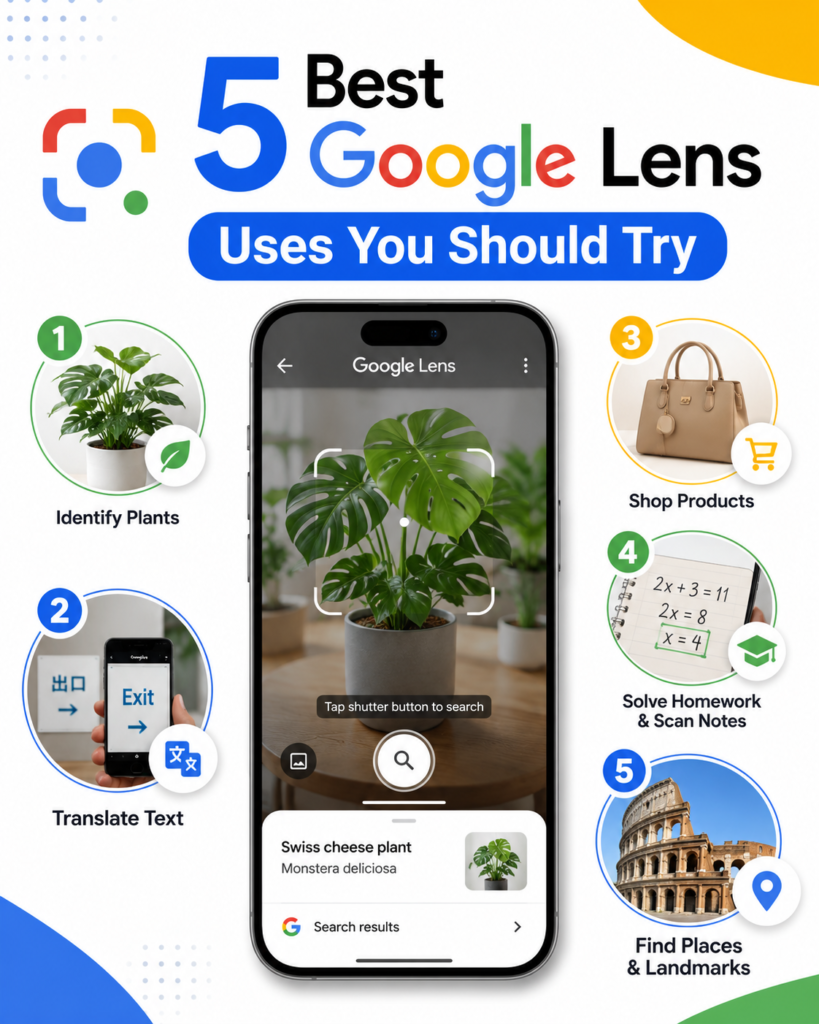
Google Lens turns your phone’s camera into a search engine, letting you identify objects, translate text, solve homework, shop for products, and scan documents just by pointing your camera instead of typing a query. It’s built directly into Google Lens, the Google app, Google Photos, and Chrome, and it’s completely free to use on both Android and iPhone.
Most people only know Google Lens as “that thing that identifies plants,” but it has quietly become one of the most genuinely useful tools on a smartphone, saving time on everyday tasks that used to require typing, guessing, or switching between five different apps. This guide walks through the five best uses of Google Lens, how each one actually works, where it tends to fall short, and how to get consistently accurate results, so you can put it to work the next time you’re stuck identifying, translating, or shopping for something.
1. Identify Objects, Plants, Animals, and Landmarks Instantly
Point your camera at almost anything, a flower on a hike, a painting in a museum, a gadget you don’t recognize, and Google Lens compares it against Google’s visual search index to tell you what it is. Under the hood, this relies on the same kind of computer vision and neural network pattern matching used across modern applied AI, similar to the image recognition techniques covered in this piece on how artificial intelligence is accelerating scientific discovery.
How it works: Lens extracts visual features from your photo, colors, shapes, textures, and edges, and matches them against billions of indexed images. When it finds a strong match, it surfaces information pulled from Google Search: species names, product listings, historical facts, or care instructions.
Where it shines: Identifying common houseplants, dog breeds, tourist landmarks, and consumer products with clear branding. Gardeners use it to diagnose plant problems, hikers use it to identify wildlife safely from a distance, and shoppers use it to recognize furniture or décor they spot in someone else’s home.
Common mistake: Photographing an object from too far away or with three other things in frame. Lens performs best when the subject fills most of the frame and the lighting is even, not backlit or cast in heavy shadow.
Practical example: You’re at a nursery and see a plant with no label. Snap a photo, and Lens usually returns the species name along with basic care information in under two seconds, no need to ask an employee or dig through a plant identification app you’ll never open again.
2. Translate Text in Real Time While Traveling or Studying
Point your camera at a menu, sign, or textbook page written in another language, and Lens overlays the translated text directly on the image, live, without you having to type or copy anything. This feature runs on Google Translate’s engine and covers more than 100 languages.
How it works: Lens performs optical character recognition (OCR) to detect and extract the text in the photo, sends it through Google Translate, then renders the translated words back over the original image in roughly the same font size and position, which is why it feels closer to augmented reality than a typical translation app.
Where it shines: Restaurant menus, street signs, product labels, and printed instructions. If you’re planning a trip, it pairs naturally with visual trip planning tools like the ones discussed in this guide to creating a dream travel video before the journey begins, since both rely on your camera to capture and make sense of unfamiliar surroundings.
Common mistake: Assuming live camera translation is perfect for legal, medical, or contractual documents. Machine translation still struggles with idioms, legal phrasing, and handwriting, so anything with real consequences should get a human translator’s review.
Practical example: You’re at a restaurant abroad staring at a menu with zero English. Hold your phone up, and the dish names translate on screen in real time. You can also tap to copy the translated text and paste it into a message to a local friend asking for a recommendation.
3. Solve Homework and Check Your Work
Scan a printed or handwritten math problem, and Lens can walk through step by step solution methods rather than just spitting out a final answer. It extends to science diagrams, history questions, and vocabulary too, pulling in explanations and trusted educational resources through Google Search.
How it works: Lens recognizes the structure of the equation or question in your photo, matches it against known problem types and educational content partners, then returns worked solutions, related concepts, and links to further reading.
Where it shines: Algebra and geometry problems with a clear, standard structure. It’s also useful for checking your own work after solving something by hand, since seeing where your process diverges from the suggested method is often more instructive than getting the answer alone.
Common mistake: Using it purely to copy final answers without reading the steps. That defeats the point and doesn’t build the underlying skill, which matters the next time there’s no phone allowed on a test.
Practical example: A student is stuck on a quadratic equation at 10 p.m. with no one around to ask. Scanning it with Lens surfaces a step by step breakdown of the factoring method, which helps them finish the rest of the problem set on their own instead of guessing.
4. Shop Smarter by Scanning Products and Comparing Prices
See something you like in a store, on someone else’s desk, or scrolling through social media, and Lens can find where to buy it, show similar alternatives from other brands, and surface reviews, all from a photo instead of a product name you may not know.
How it works: Lens matches the photographed item against Google Shopping’s product graph, which contains structured listings from thousands of retailers. It returns visually and functionally similar products even when you have no idea what the item is called.
Where it shines: Clothing, furniture, electronics, and home décor, categories where products have consistent, recognizable designs. It’s particularly useful for finding a cheaper version of something you saw at a premium retailer, or the reverse, finding a nicer alternative to something you already own.
Common mistake: Buying the first result without reading reviews. Lens surfaces options fast, but that speed can tempt people to skip the comparison step that actually protects them from a bad purchase. Reading verified reviews before checking out matters just as much here as it does with any other online shopping tool, the kind of due diligence covered in guides on ecommerce tools for scaling an online store.
Practical example: You spot a lamp in a coffee shop that would look great in your living room. Scan it with Lens, and it returns near identical designs from multiple retailers, often at a range of prices, so you can pick the one that fits your budget instead of tracking down the original brand.
5. Scan QR Codes, Extract Text, and Save Contact Details
Beyond visual search, Lens works as a lightweight productivity tool. It reads QR codes without a separate scanner app, extracts printed or handwritten text so you can copy and edit it, and recognizes business cards well enough to save a new contact in a couple of taps.
How it works: For QR codes, Lens decodes the embedded data (a URL, Wi-Fi credentials, a menu link) and opens it directly. For text and business cards, it relies on the same OCR engine used for translation, but instead of converting language, it converts the image into editable, searchable text and recognizes structured fields like phone numbers and email addresses.
Where it shines: Digitizing notes from a whiteboard after a meeting, extracting a quote from a physical book without retyping it, and networking events where trading paper business cards is still common, a scenario that comes up constantly in sales heavy workflows like those covered in guides on the best B2B appointment setting companies, where every new contact needs to get into a CRM quickly and accurately.
Common mistake: Scanning glare filled or crumpled documents and expecting perfect OCR. A quick flatten and a steady hand improve accuracy more than people expect.
Practical example: You’re handed a business card at a conference. Instead of manually typing the name, title, phone number, and email into your contacts app, scan it with Lens and confirm the auto filled fields, saving a contact in under ten seconds.
Bonus Features Worth Knowing About
A few lesser known Lens capabilities are worth a mention because they solve problems the five uses above don’t quite cover.
Search from a screenshot. Instead of describing something in words, open a saved screenshot in Google Photos and run Lens on it directly. This is faster than typing a description when you’re trying to identify a piece of clothing or a logo you saw on someone else’s screen.
Identify food and pull up recipes. Point Lens at a dish, at a restaurant or on social media, and it will often name it and link to recipes, ingredient lists, and nutrition information, useful when you want to recreate something you ate without knowing what it’s called.
Recognize art and monuments. Museums and historic sites become more interactive when you can scan a painting or sculpture and instantly pull up the artist, period, and backstory instead of squinting at a small placard.
How to Get the Most Accurate Results
Accuracy with any AI visual recognition tool comes down to image quality more than anything else. A few habits make a measurable difference:
- Use good lighting. Natural or bright indoor light gives Lens more detail to work with than dim rooms or heavy shadows.
- Fill the frame with your subject. Crop out distracting backgrounds and get close enough that the object dominates the photo.
- Hold the camera steady. Motion blur is one of the most common reasons Lens returns a poor or unrelated match.
- Keep your apps updated. Google regularly ships model improvements to the Google app, Google Photos, and Chrome, and outdated versions miss out on accuracy gains.
Where Google Lens Still Falls Short
Lens is genuinely capable, but it isn’t infallible, and knowing its limits saves frustration.
Rare or ambiguous subjects. Uncommon plant species, handmade or one off products, and newly released items with little indexed information tend to produce weaker matches. Taking a few photos from different angles usually helps.
Sensitive documents. Because Lens processes images through Google’s servers for most features, avoid scanning documents with sensitive personal, medical, or financial information unless you’ve reviewed your privacy settings first.
High stakes accuracy. For anything with real consequences, a legal contract, a medical instruction, a large purchase, treat Lens as a fast first pass, then verify with an authoritative source before acting on it.
Frequently Asked Questions
Is Google Lens free to use?
Yes. It’s available at no cost through the Google app, Google Photos, and Chrome on both Android and iPhone, with no subscription required.
Do I need an internet connection for Google Lens to work?
Most features do require an active connection, since Lens relies on Google’s cloud based search and AI systems to match your image against its index. A small number of basic on device functions may work offline depending on your device.
Is Google Lens available on iPhone?
Yes. iPhone users get the same core features through the Google app and Google Photos, downloaded from the App Store, though a few Android specific integrations (like the built in Camera app shortcut) aren’t present on iOS.
How accurate is Google Lens for identifying plants and animals?
It’s generally reliable for common species with clear, well lit photos, but accuracy drops for rare species, juvenile plants, or images with multiple subjects in frame. Cross checking with a dedicated field guide is a good habit for anything you plan to eat or handle.
Can Google Lens translate handwriting?
It can, but with lower accuracy than printed text. Neat, clearly formed handwriting translates reasonably well; cursive or stylized handwriting often produces errors.
Does Google Lens save the photos I scan?
Scans may be temporarily processed on Google’s servers to return results, and your Lens activity can be reviewed and deleted through your Google Account’s activity controls. Check your privacy settings if you routinely scan sensitive material.
What’s the difference between Google Lens and just using Google Search?
Google Search starts from typed keywords; Lens starts from an image, which matters when you don’t know what something is called. They’re complementary; Lens often hands you back to a regular Search results page once it identifies the subject.
Can Google Lens read QR codes without a separate app?
Yes, on most modern Android devices and many iPhones, Lens scans QR codes directly, whether they’re printed on paper or displayed on another screen, and opens the linked content automatically.
Final Thoughts
Google Lens has moved well past its early reputation as a novelty plant identifier. Used well, it replaces several separate apps: a translator, a QR scanner, a homework helper, a shopping comparison tool, and a business card scanner, all triggered from the same camera icon you already have open dozens of times a day.
The fastest way to get comfortable with it is to actually use it the next time a small, everyday question comes up: an unfamiliar plant, a menu in another language, a math problem you’re stuck on, or a product you want to price compare. Pay attention to lighting and framing, verify anything important with a second source, and Google Lens quickly becomes one of the more practical AI tools already sitting on your phone.
